社内でファイルパスを共有する際にユーザー名が入ると面倒なので右クリックメニューから%userprofile%にしてパスをコピーできるようにするスクリプトを組んだ。
私はBoxDriveのアプリ版を使っているが他のオンラインドライブでも役立つかも。
前準備
CopyUserProfilePath.ps1
param([string]$file)

$u = $env:userprofile
$o = $file

if ($o -like "$u*") {
    $o = $o.Replace($u, '%userprofile%')
}

Set-Clipboard -Value $o
上記のPowerShellスクリプトをCドライブ直下に配置。
(場所は別にどこでもいいが、併せて下記のregファイルのパス部分を環境に合わせて変更する必要がある)
CopyUserProfilePath.reg
Windows Registry Editor Version 5.00

; ===== ファイル用 =====
[HKEY_CLASSES_ROOT\*\shell\CopyUserProfilePath]
@="ユーザーパスをコピー"
"Icon"="imageres.dll,-5302"

[HKEY_CLASSES_ROOT\*\shell\CopyUserProfilePath\command]
@="powershell -NoProfile -ExecutionPolicy Bypass -File \"C:\\CopyUserProfilePath.ps1\" \"%1\""

; ===== フォルダ用 =====
[HKEY_CLASSES_ROOT\directory\shell\CopyUserProfilePath]
@="ユーザーパスをコピー"
"Icon"="imageres.dll,-5302"

[HKEY_CLASSES_ROOT\directory\shell\CopyUserProfilePath\command]
@="powershell -NoProfile -ExecutionPolicy Bypass -File \"C:\\CopyUserProfilePath.ps1\" \"%1\""
(CopyUserProfilePath.ps1の位置を変更している場合は該当の場所にパスも編集すること。)
上記ファイルを適当な場所に配置して文字コードANSIで保存する。
使い方
作成したCopyUserProfilePath.regを実行すると自動的にレジストリに登録される。
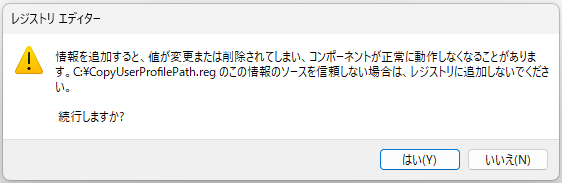
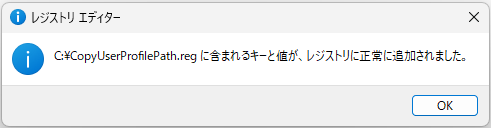
一度実行したらCopyUserProfilePath.regは削除して問題ない。
ファイルやフォルダを選択して右クリックメニューを表示するとユーザーパスをコピーという項目が表示される。
(文字化けしている場合はCopyUserProfilePath.regを文字コードANSIで保存していなかったのだろう)
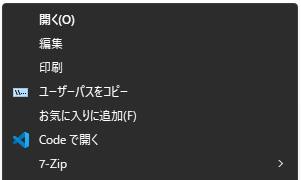
この項目を選択すると一瞬PowerShellのウィンドウが表示されるが%userprofile%パスとしてコピーすることができるようになる。
例
%userprofile%\Documents\PassCopyTest.txtおわり
多少の生産性向上に繋がる思われる。